Wireless Pro Gamepad: Switch, Mobile & PC Setup Guide
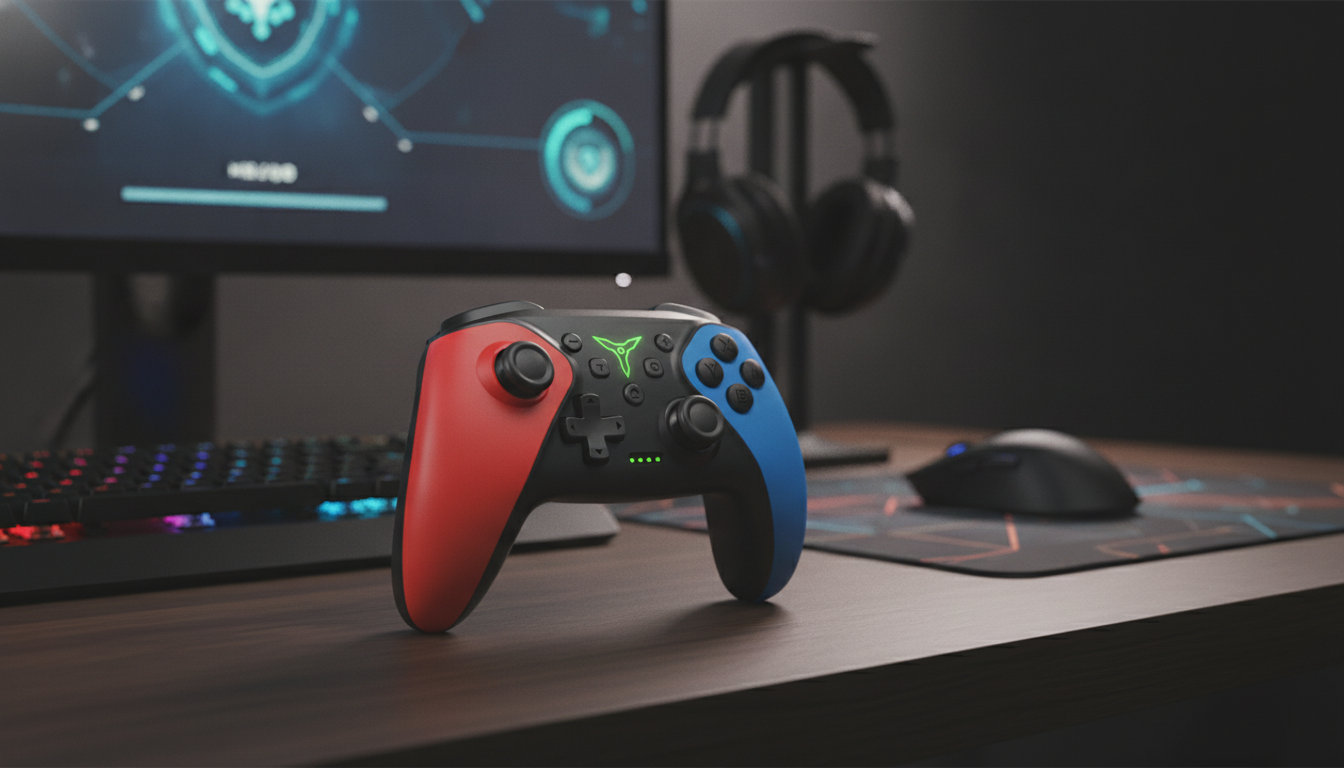
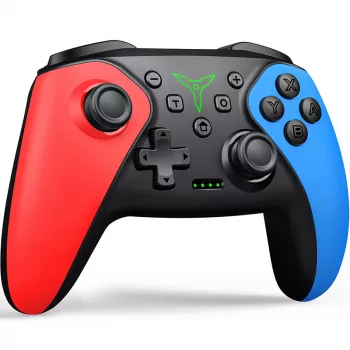
Wireless Pro Gamepad for Switch, Mobile & PC Gaming
A single controller that can move between Switch, phones, tablets, and PCs makes it easier to keep the same grip, button layout, and muscle memory across platforms. A wireless pro-style gamepad is built for longer sessions than compact controllers, while still staying simple enough to pair quickly and get playing. Below is a practical guide to everyday use: what a pro controller adds, how to connect it to each device, and what habits help keep performance steady.
What a pro-style wireless gamepad adds to everyday gaming
Compared to smaller, travel-first controllers, a pro-style gamepad is designed to feel stable in your hands for hours. The full grips distribute pressure better, which can help reduce hand fatigue during long RPG runs, online matches, or late-night co-op.
Full-size analog sticks and triggers also make a noticeable difference in genres where tiny inputs matter. Racing games benefit from smoother steering and throttle control, while shooters and action titles feel more predictable when aiming, panning the camera, or feathering movement. Just as importantly, using one consistent layout across devices reduces the “relearning” time when switching from Switch to mobile or PC.
Device compatibility at a glance
Multi-platform controllers are most enjoyable when expectations are clear: the controller can connect, but the game still needs to support controller input. Before troubleshooting hardware, confirm the title you’re playing actually accepts external controllers.
Common connection scenarios
| Platform | Typical connection | What to check before playing |
|---|---|---|
| Nintendo Switch | Wireless pairing | Controller pairing screen, battery level, in-game controller support |
| Mobile (iOS/Android) | Bluetooth pairing | OS Bluetooth settings, game controller support, mounting/stand setup |
| PC (Windows) | Bluetooth or wireless receiver (if supported) | Bluetooth enabled, input mode recognized by the game/client, driver updates |
For Switch-specific pairing guidance and accessory notes, Nintendo’s support pages can help confirm the right menu path and expected behavior: Nintendo Support: Controllers and accessories.
Core features that matter most
When shopping for a wireless pro controller, the day-to-day features tend to matter more than flashy extras. Wireless connectivity is the big one: it keeps setups clean and flexible, whether you’re playing docked on the couch, at a desk, or with a tablet on a stand.
A pro-style layout (dual sticks, D-pad, face buttons, and shoulder controls) is the next priority. It’s the familiar shape many games are built around, and it usually translates well across platforms as long as the correct input mode is used. Finally, value matters: a solid mid-range controller can serve as a primary gamepad without pushing into premium pricing, especially if it’s going to be used across Switch, mobile, and PC.
Pairing and setup (quick steps by platform)
Nintendo Switch
Open the controller pairing screen on your Switch, then put the gamepad into pairing mode. Once it appears as connected, test inputs in the console menu or a game. If it doesn’t show up, charge the controller briefly and retry pairing closer to the console to rule out low battery or distance issues.
Mobile (iOS/Android)
Enable Bluetooth in your device settings, scan for nearby devices, and select the controller. After pairing, test in a controller-supported game or service. If your phone has no comfortable way to hold both screen and controller, a stand or clip can dramatically improve longer sessions.
If you want a deeper overview of Bluetooth behavior and why range/obstacles matter, the Bluetooth SIG’s explainer is a helpful reference: Bluetooth SIG: How Bluetooth works.
PC (Windows)
Pair through Windows Bluetooth settings (or the controller’s supported wireless mode), then confirm detection inside the game’s controller menu or the launcher’s controller settings. If buttons feel “wrong” (like confirm/cancel swapped or stick mapping off), re-pair using the intended input mode if the controller supports multiple modes.
For persistent Windows Bluetooth issues, Microsoft’s troubleshooting steps can save time: Microsoft Support: Fix Bluetooth problems in Windows.
Comfort, grip, and control for different game types
Different genres stress different parts of a controller, so it helps to test with the games you actually play:
- Action & adventure: Ergonomic grips support longer exploration and combat without cramping, especially when you’re constantly adjusting the camera and sprinting.
- Fighting games: D-pad feel matters for clean directional inputs. Before committing, try repeated quarter-circles and diagonal presses to see if inputs register consistently.
- Racing & shooters: Smooth triggers and stable stick tension make fine steering and micro-aim adjustments easier to repeat.
- Platformers: Consistent button travel helps with timing-heavy jumps, dashes, and quick turnarounds.
Battery habits and charging tips
Start by fully charging before your first long session when possible; it can help stabilize battery readings and reduce “surprise” disconnects. For travel, pack the charging cable and try not to store the controller at 0% for long periods.
Reducing input lag and connection dropouts
What’s included and what to have ready
When this controller is a good fit
In-stock picks from our store
- Wireless Pro Gamepad for Switch, Mobile & PC Gaming — $34.67
- Rain Cloud Humidifier — $51.51
- Double Head Eyeliner & Eyebrow Brush Set — $2.47
FAQ
Does a wireless controller work with every mobile game?
Not always. The game must support external controller input—many action titles, racing games, and cloud/remote-play apps do, while some touch-only games do not.
How is a pro-style controller paired to a Nintendo Switch?
Open the Switch controller pairing screen, put the controller into pairing mode, and confirm it shows as connected. If pairing fails, recharge briefly and retry closer to the console.
What should be done if the controller connects but buttons are mapped incorrectly on PC?
Re-pair using the intended input mode if the controller supports multiple modes, then check the game’s controller settings and Windows controller configuration. Updating Bluetooth drivers can also resolve incorrect mappings.








Leave a comment